W3 Description:
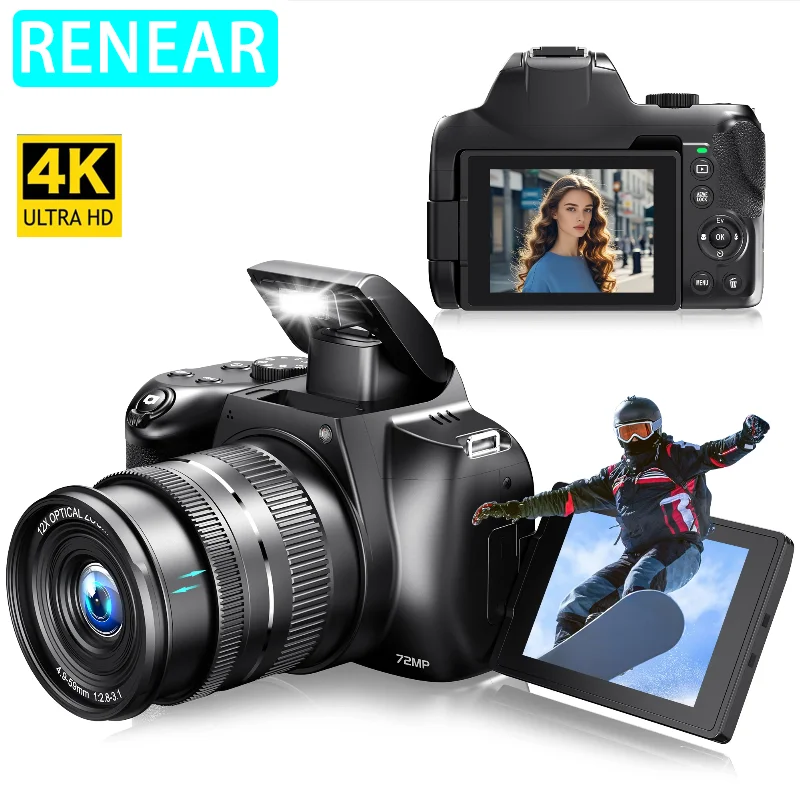
3.0 Inch Rotatable HD Screen
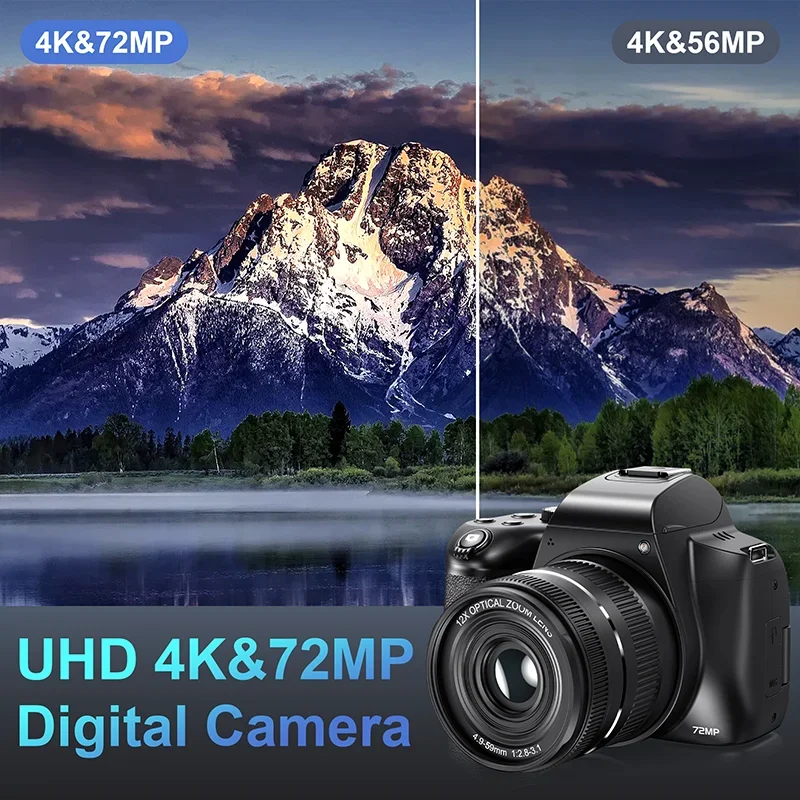
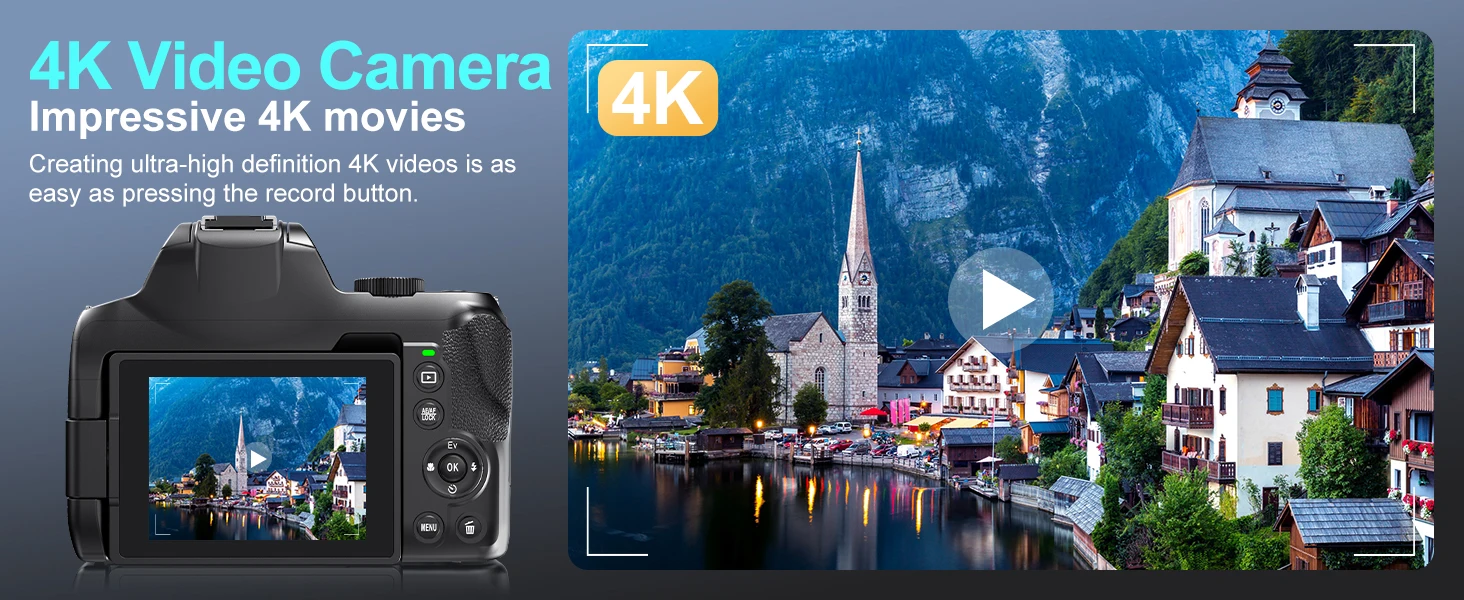
4K Video Recording And 72MP Photo Photography
With universal Screw Hole for tripod at the bottom
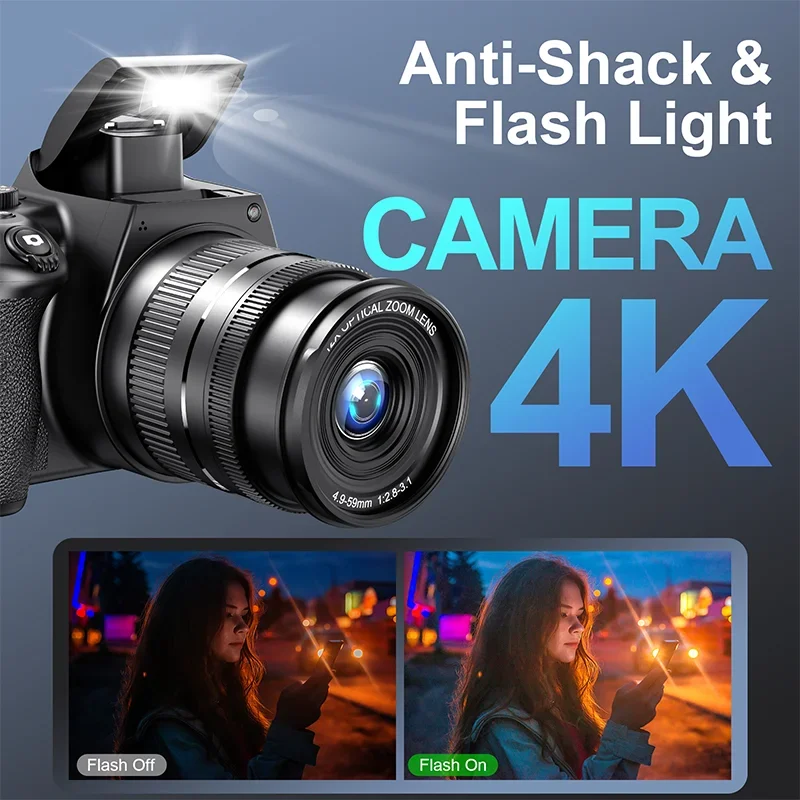
Built In Fill light / HDMI / 3.5MM Microphone / Type C Charging Interface
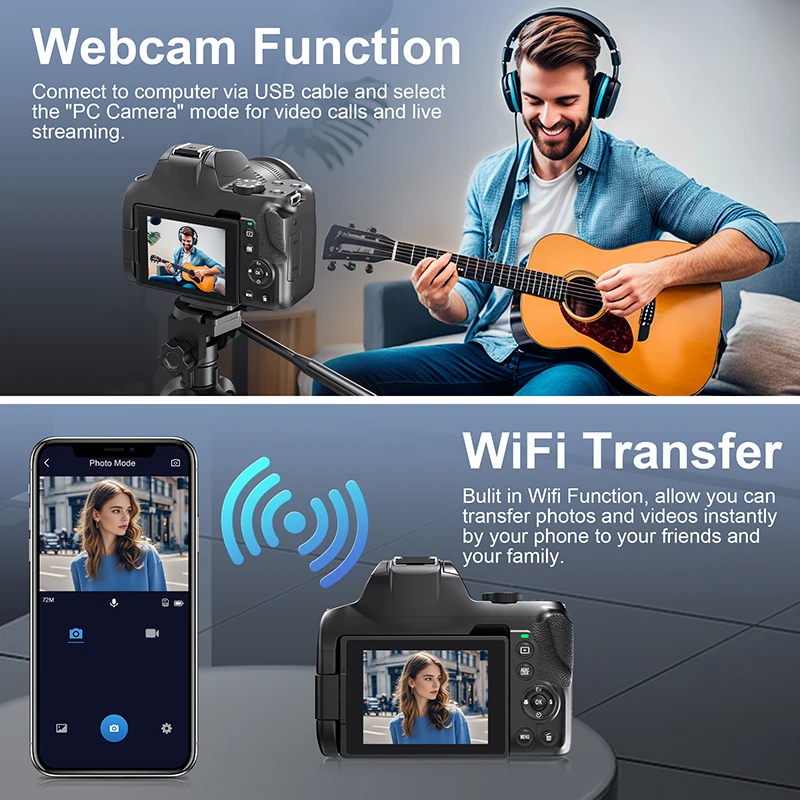
Live Streaming Function (With merely a piece of USB Cable, the camera can be connected to your PC, and used as Youtube Facebook livestream webcam, no capture card is needed. )
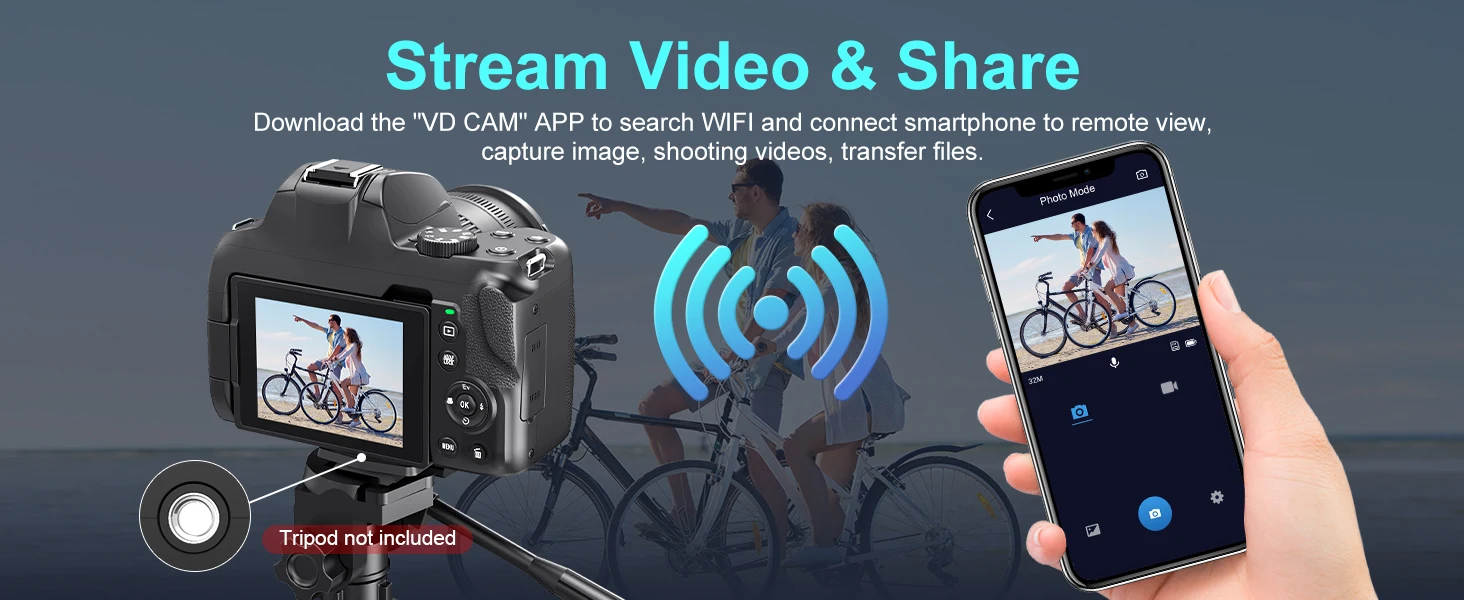
WiFi Function (Note: This WiFi is only the signal between camera and smartphone, not Internet wifi. By downloading App and connect your phone with camera , you can control the camera wirelessly , and share the photo or video in your social media account )
Pause Function: Press the ‘EV’ button while recording a video to pause the recording, and press the ‘EV’ button again to resume recording.
Recording While Charging (The camera can be powered and charged by power bank while recording)
Package Includes:
Camera * 1
Battery * 1
USB Cable * 1
English Manual * 1
Shoulder strap* 1
lens cap*1
non-dust cloth* 1
SD Card*1(Based on your choice)
There are two types of cameras in the link, namely the W2 and W3
W2 specs: No rotating screen, 10X zoom, 64MP pixels
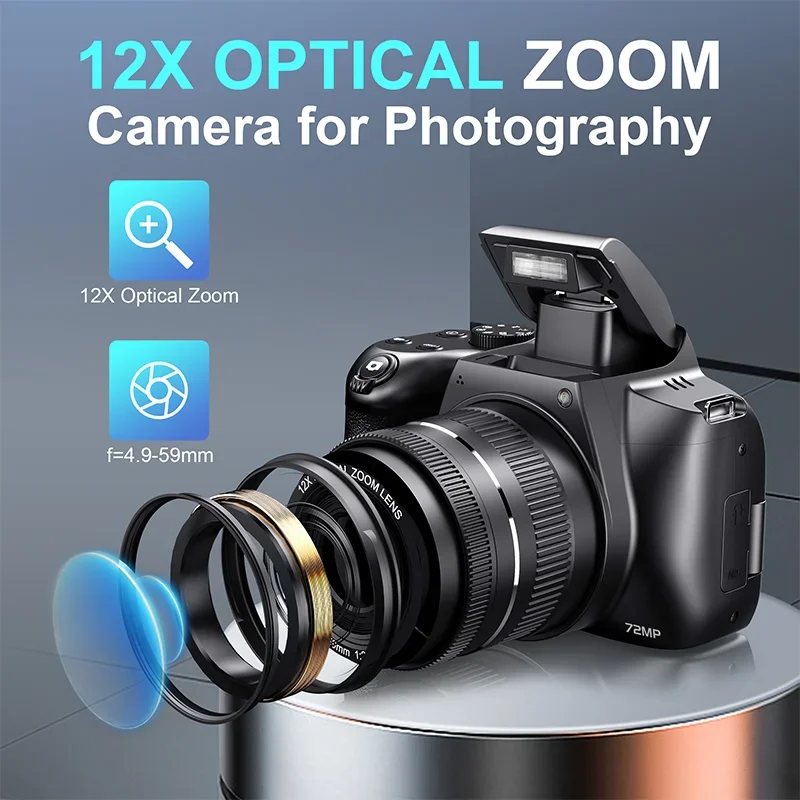
W3 specs: rotating screen, 12X zoom, 72MP pixels
Be sure to pay attention before placing an order. We will ship according to your choice!!!
Note:
1.The camera requires a memory card. If necessary, please choose the SKU with SD. The size and capacity can be ordered according to your choice. If the package you ordered includes an SD card, we will help you place it in the camera card slot in advance.
2.The camera has an autofocus feature. When you take a photo, press the camera’s ‘AE/AF LOCK’ button to perform manual focus.
A:How do you view the photos or videos taken on the camera?
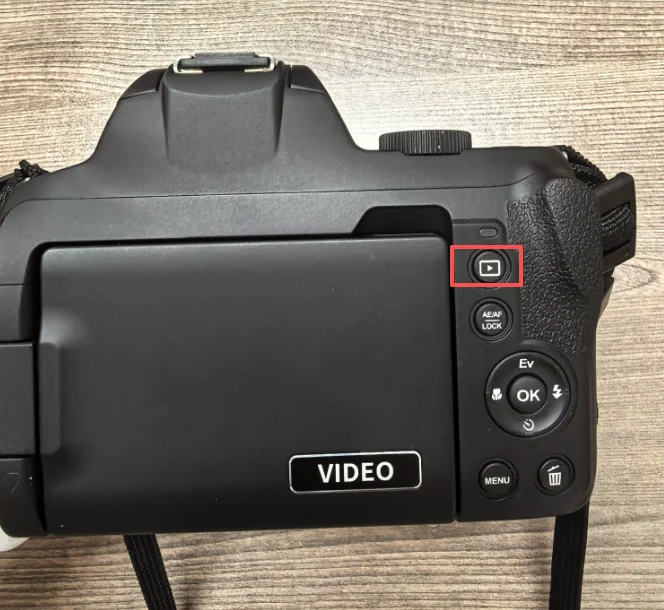
Method 1: Press the camera’s ‘Playback’ button to view previously captured content (as shown below)
Method 2: Download the application and connect your mobile device to the camera (compatible with both Android and IOS systems)
Method 3: Use a card reader to connect to a computer for viewing
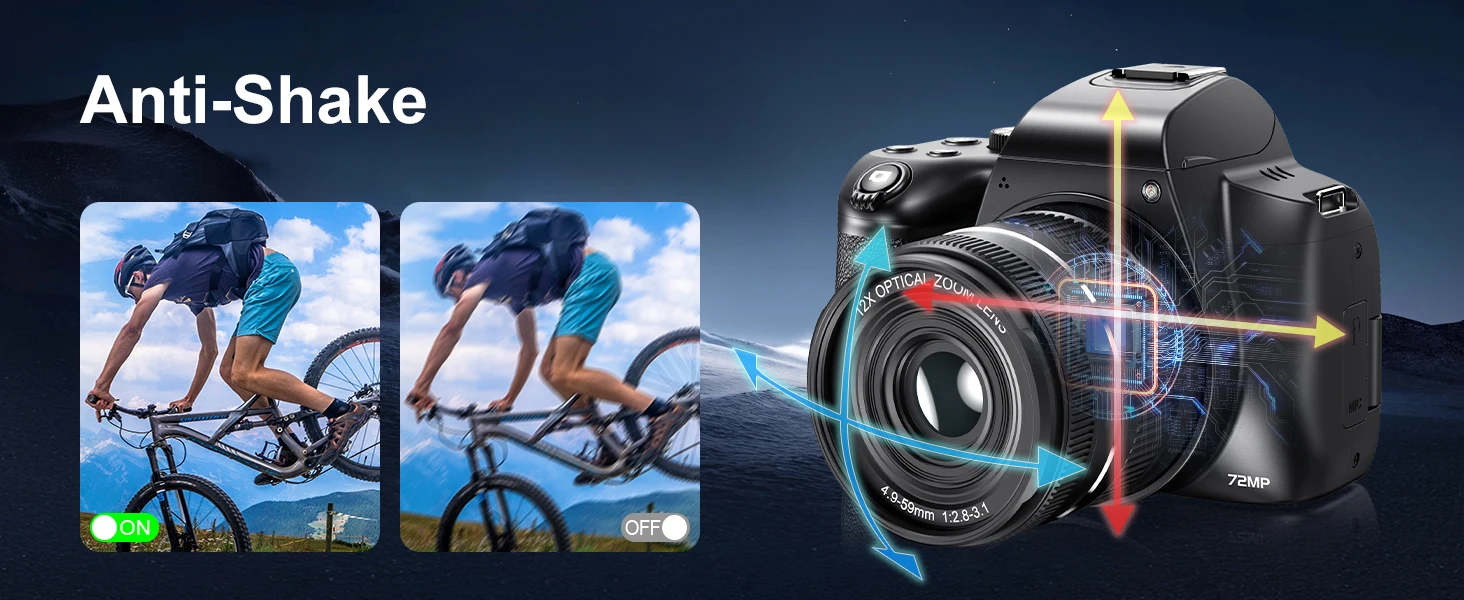
A:Why can’t I enable the ‘Anti-Shake’ feature?
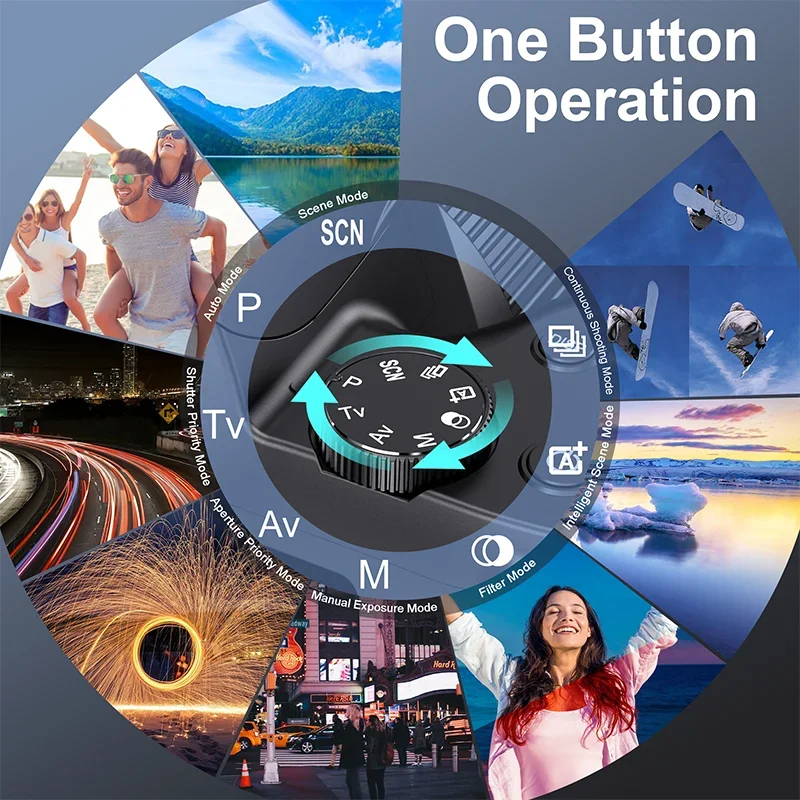
Do not align the ‘M’ and ‘AV’ buttons on the dial with the silver indicator mark. In these two modes, the camera cannot enable the ‘Anti-Shake’ function.
A:What should I do if the video is blurry during recording?
This is related to the camera’s autofocus system. Please switch to ‘manual focus’ mode to avoid errors in autofocus.
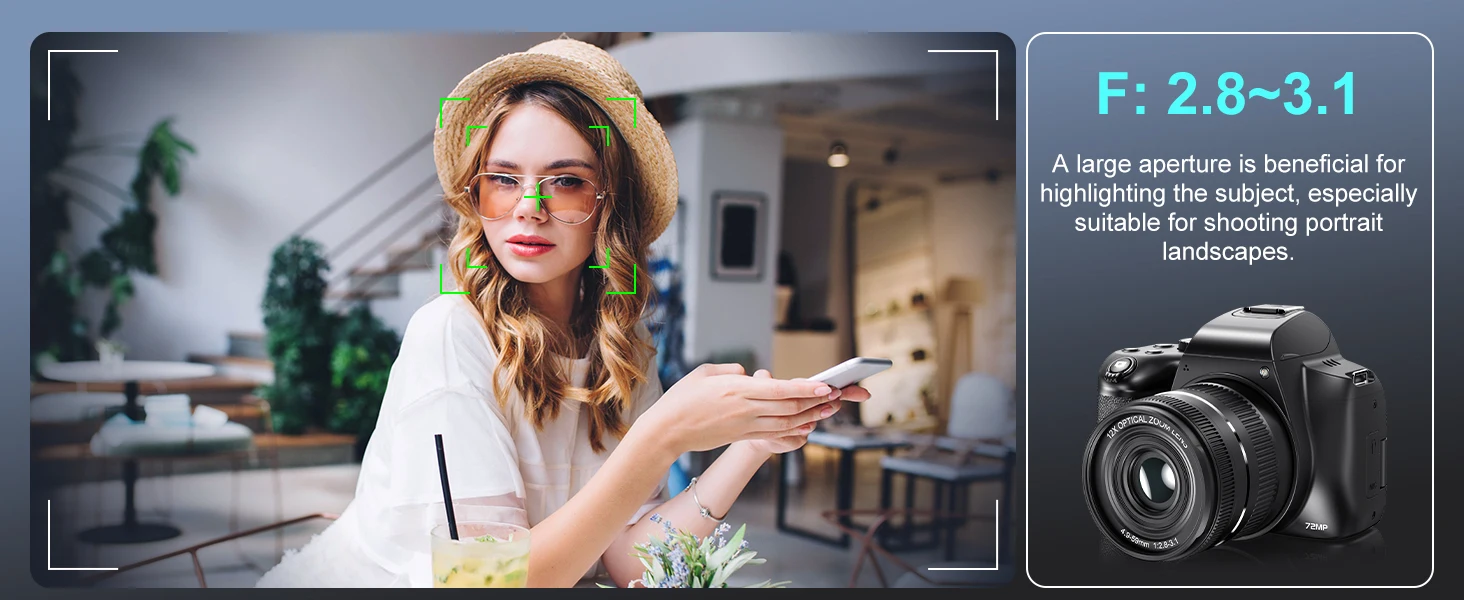
 12X OPTICAL ZOOM
Newest Camera for Photography
High Sensitivity CMoS Sensor Capture minute details and restore the true color
Flash Light
Five choices: Auto, Red-eye,Reducation, Forced Flash, Slow Sync and No Flash.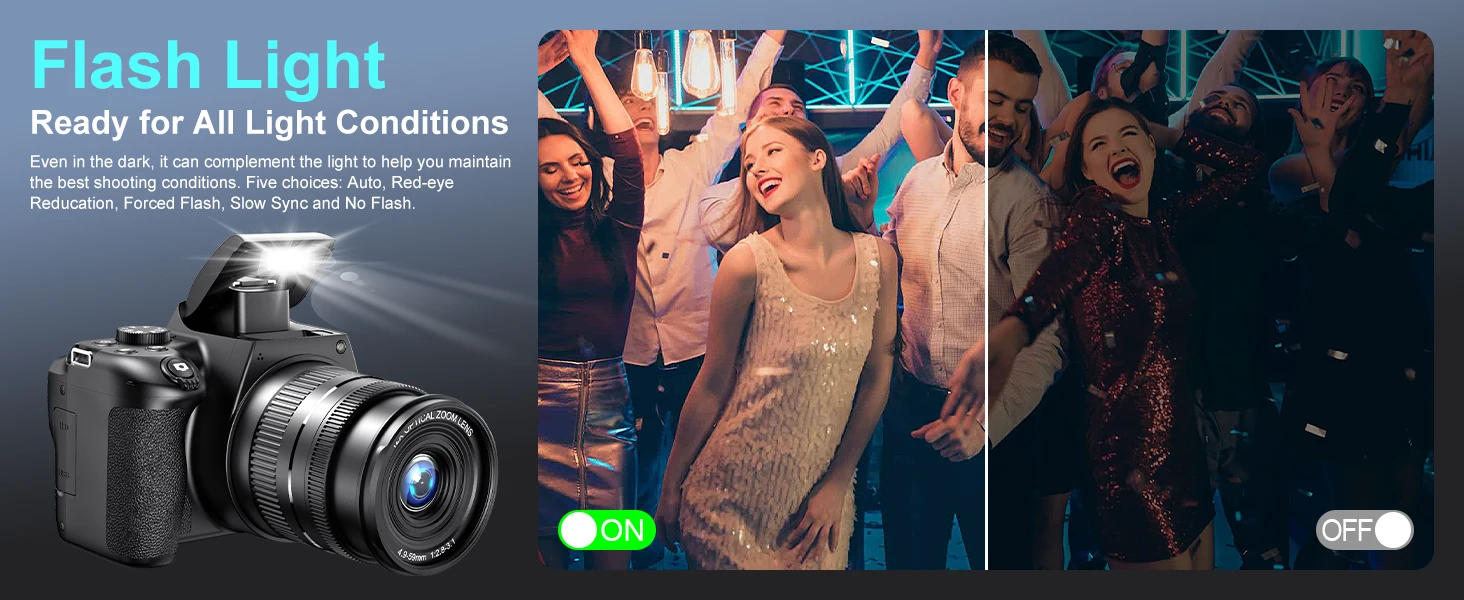


 WEBCAM
USB cable connected to computer for real-time video or life sharing